Metis PCIe 4-AIPU: Installation Guide
This guide covers installing the Metis PCIe 4-AIPU AI Accelerator Card into a host — a single card in a desktop or workstation, and multiple cards in a server.
Prerequisites
- A PCIe Gen 3.0 x16 slot
- An 8-pin PCIe auxiliary power cable from your power supply
- An anti-static wrist strap
The Metis PCIe 4-AIPU card requires auxiliary power. It will not function from slot power alone.
Install the card
- Switch off the power to the host.
- Align the card with a PCIe Gen 3.0 x16 slot and insert it.
- Secure the card with the bracket screws.
- Verify the fan is securely attached and unobstructed.
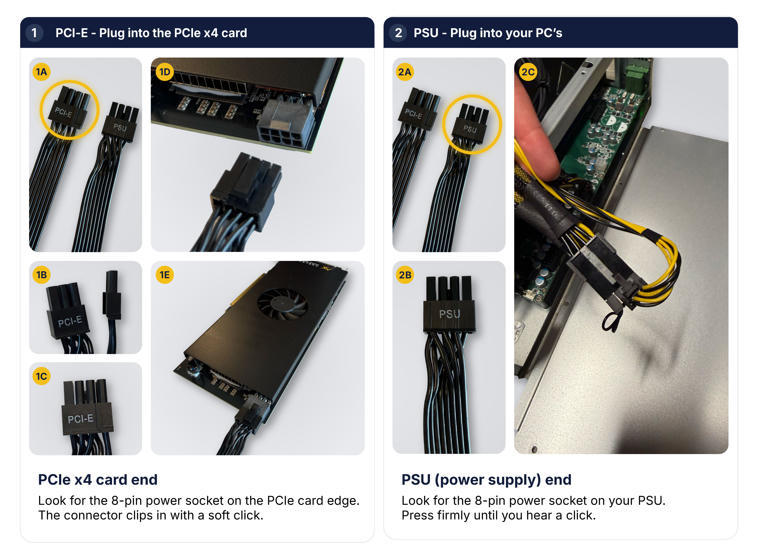
- Connect the PCIe auxiliary power cable to the 2 x 4 connector on the card.
Connecting the power cable
There is an 8-pin power socket on the card edge (the PCIe end) and on your PSU. The connector clips in with a soft click — press firmly until you hear it.
Installing cards in a server
- Power off the server and disconnect the AC power cables. Wait 30 seconds for the capacitors to discharge.
- Ground yourself with an anti-static wrist strap attached to the chassis before handling Metis cards.
- Remove the chassis cover, following the server's own manual.
- Remove the PCIe slot blank covers at the target positions.
- Seat each Metis PCIe card firmly and secure the retention bracket with the supplied screw.
- Verify all cards are fully seated — partial seating is the most common reason cards do not appear at POST.
- Connect the 2 x 4-pin PCIe power cable to each Axelera card. Power cables may be supplied by the server manufacturer as separate accessory parts; use the adapter if needed to connect to the server's power supply.
- Replace the chassis cover, reconnect AC power, and power on.
For balanced performance, distribute multiple Metis cards evenly across CPU sockets and PCIe root ports.
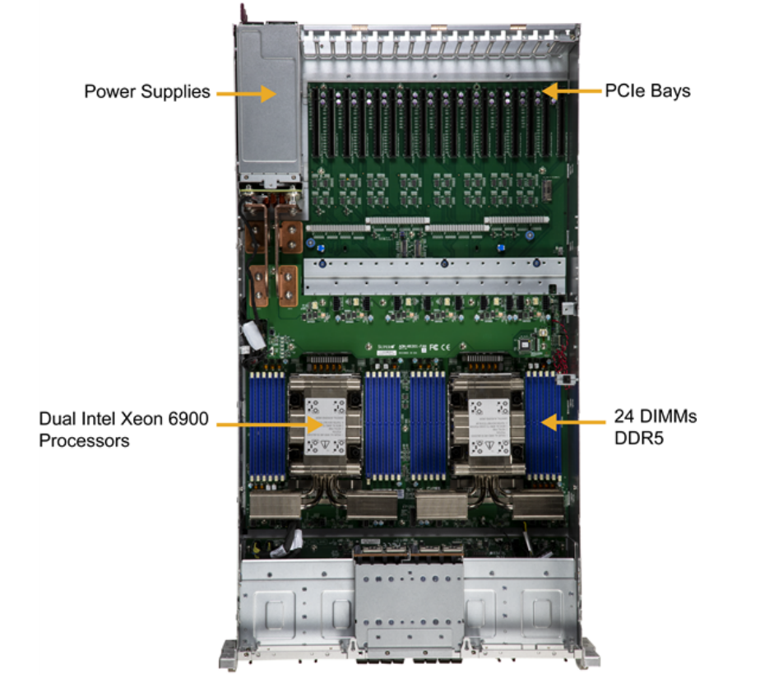
Example: SuperServer SYS-322GA-NR
The example below shows multiple Metis 4-chip PCIe cards installed in a SuperServer SYS-322GA-NR.
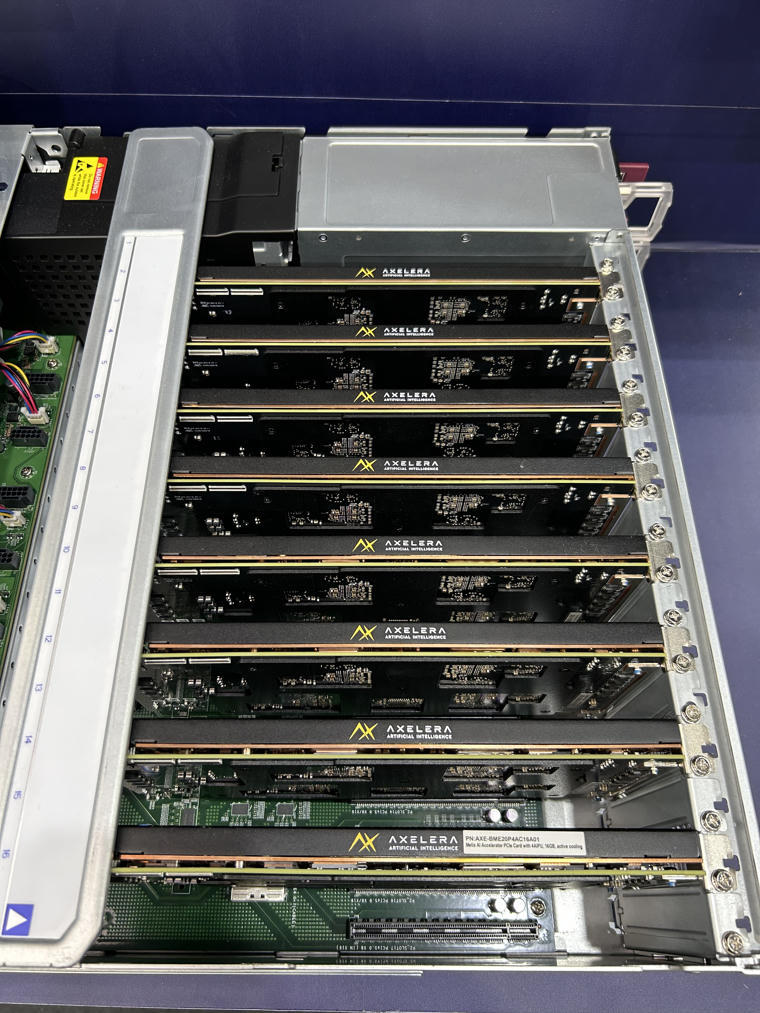
For this server, an adapter (part number CBL-PWEX-1362-45) is required to convert the 16-pin 12VHPWR cable to the 2 x 4-pin cable compatible with the 4-chip PCIe Metis card.
The SYS-322GA-NR's PCIe slots are divided between CPU 1 and CPU 2. Check the user manual or chassis slot labelling to identify which physical slots are tied to which CPU root complex, and distribute the cards evenly.
Post-install checklist
-
Fan is running and unobstructed.
-
The system detects the card:
lspci | grep Axelera